Everything You Ever Wanted to Know about Favicons
![[ Image: Fifty of my Favorite Favicons ]](https://perishablepress.com/wp/wp-content/images/2007/favicons/favicon-collection.gif "Favicons from my fifty favorite feeds")
Fifty Favorite Favicons If you have a website, you need a favicon. For those who may not know, favicons are the small, square icons that frequently are associated with websites. Favicons appear in many places, including browser toolbars, bookmarks, tabs, and address bars. Favicons provide immediate visual identification of their represented sites, enabling super-easy navigation for Web users. While surfing bookmarks with fifty tabs open, finding and clicking on icons is far more efficient than reading through piles of link text. Yet, beyond making it easier for people to identify and locate their favorite websites, favicons also play a critical role in site branding and product recognition. Popular browsers such as Firefox, Opera, and Internet Explorer are virtually re-branded when favicon-enabled sites are displayed. For example, observe how willingly modern browsers conform to the image of web designer/developer Jonathan Snook:
![[ Image: Snook favicon in Firefox ]](https://perishablepress.com/wp/wp-content/images/2007/favicons/favicon-branding_firefox.gif "Have you seen the new FireSnook browser?")
Have you seen the new FireSnook browser?
![[ Image: Snook favicon in Opera ]](https://perishablepress.com/wp/wp-content/images/2007/favicons/favicon-branding_opera.gif "Snook rebrands Opera")
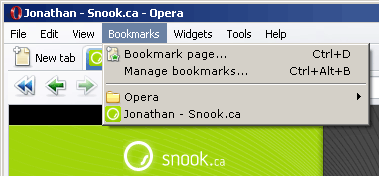
Jonathan Snook rebrands Opera
![[ Image: Snook favicon in Internet Explorer ]](https://perishablepress.com/wp/wp-content/images/2007/favicons/favicon-branding_explorer.gif "Snook rebrands Internet Explorer")
Who owns the browser now?
Sure, an incredibly strong page design helps in each of these examples, but for the most part, it is the favicon that brings it all together — visually uniting the various browser components into a well-branded browsing experience. Now to provide contrast, let’s consider a hypothetical bizarro world in which faviconless Snook pages are a common sight:
![[ Image: Snook page without a favicon as seen in Opera ]](https://perishablepress.com/wp/wp-content/images/2007/favicons/favicon-branding_opera_.gif "Without Snook's keen favicon, Opera reclaims its browser")
Oh, that’s an Opera browser..
Pretty scary stuff, especially if you are trying to promote a particular brand, theme, or style. The bottom line is that favicons aren’t just for bookmarks anymore.
During web design, I like to think of a site’s favicon as its crown jewel. The final touch, added after everything else has fallen into place. It’s a symbol of accomplishment, completeness, and significance. There is nothing better than bookmarking a new site in Firefox and watching as its favicon struts into place. Conversely, there is nothing worse than pimping a phat row of browser toolbar shortcuts for your favorite sites, only to discover that a couple of them are sadly missing their representative favicons:
![[ Image: Firefox toolbar featuring missing favicons ]](https://perishablepress.com/wp/wp-content/images/2007/favicons/favicon-toolbar_firefox.gif)
..utterly pathetic, in my humble opinion. Even though I keep those two faceless bookmarks in my favorites toolbar, I cringe with disgust every time I happen to click on one of them. Okay, okay — it’s really not that bad, but you get the idea.. ;) This screenshot further emphasizes the importance of using a favicon to represent your website.
Getting down to business..
So, now that we demonstrated the importance of implementing a favicon on your site, it’s time to get down to business, explaining everything you ever wanted to know about the wonderful world of favicons.
Formatting your favicon
Contrary to popular opinion, favicons are not required to be created in .ico format. Sure, the .ico format may be the most popular favicon file type, but it is by far the only one. In fact, favicons come in a wide variety of file types. Some of the more common formats for favicons include the following:
.ico.gif.png.jpg
..and there are many other possibilities as well, depending on your specific needs. Regardless of file type, favicons are square images that typically are seen in sizes of 16×16 and 32×32, as measured in pixels. Although 64×64 and even larger sizes are possible, browser support is inconsistent for anything greater than 16×16. Generally, 16×16 favicons are more than sufficient, however some browsers such as Microsoft’s Internet Explorer may display favicons at 32×32 for sites bookmarked in favorites.
Fortunately, favicons created in .ico format may encapsulate multiple images, including unique instances of 16×16, 32×32, and even larger resolutions. This is beneficial when image-scaling may compromise the readability of your favicon. Whereas .gif and .png formats may scale down without loss of image quality, the converse certainly isn’t true.
My advice for selecting the best size and format? Begin with a square image of any size and use it to generate a 16×16-pixel favicon in .ico format (or any file format of your choice). This is by far the most commonly employed type of favicon, and will serve you (and your site) quite well.
Creating your favicon
Currently, there are several excellent ways to produce top-quality favicons in .ico format:
- Upload your chosen image to html-kit and generate a complete favicon package automatically.
- Handcraft a customized favicon by using favicon.cc to create your own pixelated work of art.
- Install the favicon plugin for Photoshop and gain complete control over your favicon.
And of course, to create favicons in other, common formats, such as .gif and .png, simply use your favorite image editor and customize any image to fit 16×16 or 32×32 dimensions. Another option, which I have not tried personally, involves creating a favicon in .gif or .png format and then renaming it to “favicon.ico” (i.e., changing the file extension to .ico). Keep in mind, however, that this method merely disguises the true format and renames it for the sake of ensured browser compatibility. Thus, if you plan on using this trick, remember to serve it as type="image/ico" or certain browsers may not recognize your favicon as intended (see next section for more details).
Serving your favicon
Once you have created the perfect favicon, it is time to upload it and serve it to your visitors. Begin by uploading your favicon to the root directory (www) of your website. Although other locations are theoretically possible, certain browsers such as Internet Explorer and even Firefox may get confused and ignore your favicon entirely. The traditional and perhaps de facto standard location for favicons is easily the site root.
After uploading your favicon, it’s time to place a call for it in each of your web pages. Favicons are called via the <link> element, which is located in the <head> section of (X)HTML web documents. Here is the general format required by the <link> element to call favicons:
<link rel="shortcut icon" type="image/x-icon" href="http://domain.tld/favicon.ico" />Let’s look at each attribute of this element, and discuss possible variations.
rel="shortcut icon"- The
relattribute tells the browser the purpose of the linked resource. All browsers understand arelvalue of “shortcut icon,” but only certain non-IE browsers such as Mozilla and Opera correctly interpret arelvalue of “icon.” Thus, usingrel="shortcut icon"is optimal. type="image/x-icon"- The
typeattribute specifies the MIME type for the linked resource. All browsers understand “image/x-icon,” but this is only correct if referring to an actual.ico-formatted favicon. If your favicon is formatted as.gif,.jpg, or.png, the correct MIME type is “image/ico,” as represented bytype="image/ico". href="http://domain.tld/favicon.ico"- The
hrefindicates the lcoation of the linked resource. It is recommended to locate your favicon in the root directory of your site. If you choose an alternate directory, edit the path of this element to point to the correct location. Keep in mind, however, there is no guarantee that all browsers will recognize favicons located in non-root locations. Also, remember to change the “.ico” file extension given in the example if you are using a different format.
Thus, assuming we are following the suggested “best practices” for favicon implementation, there are two fundamental types of <link> elements used to call favicons:
Call favicons in .ico format
<link rel="shortcut icon" type="image/x-icon" href="http://domain.tld/favicon.ico" />Call favicons in any other format
<link rel="shortcut icon" type="image/ico" href="http://domain.tld/favicon.ico" />Remember to change the domain.tld to your domain! :)
Footnotes
- When deciding on a format for your favicon, remember that our old friend IE does not play well with
.png. - When checking your favicon in IE, you may have to sacrifice to idols to make it appear.
- IE 5 may only recognize favicons that are named “favicon.ico”.
- Internet Explorer 6 may only support the
.icoformat for favicons. - In general, favicons are far more flexibile than IE would have you believe. Other browsers support a mucher broader implementation of favicons, including support for alternate file names, different file types, and multiple file sizes. Non-IE browsers even facilitate the easy loading of the favicon into your browser! Wheee! ;)



33 responses to “Everything You Ever Wanted to Know about Favicons”
Is this work in FF too?
I use to have a favicon in my wordpress blog but for some reason i have a problem now.
in the dashboard & in my regular website the favicon working good.
the theme that i have on my blog now is in XHTML.
What i can do to make it work in FF too? it’s working in the internet explorer good in my blog.
Hi Pinto,
I see what you mean.. btw, I was also able to see your favicon at the root URL of your site, even though there is not even an explicit link to it in the source code of that page. Thus, you may want to try experimenting a bit by removing the link in the
wpsubdirectory, or, you may want to try adding an additional (secondary) link like so:<link rel="shortcut icon" type="image/ico" href="http://domain.tld/favicon.ico" />Beyond that, I would try re-creating your favicon from scratch and re-uploading it. Also, you may want to check your server/error logs to check for discrepancies and/or other clues. Finally, if all else fails, you could always upload a secondary copy of your favicon to your site’s subdirectory and link to it directly on non-root pages.
I hope that helps — good luck!
thanks for the replay
i tried to do like you say but it’s not working….
do u have msn messenger?
Yes, follow the “Contact by chat” link in the site menu below and fill in the blanks. I am online for awhile today, so drop an email and I will try to help you.
Great article with much usefull information.
It would have saved me some research if I would have found it before I wrote my own article.
Keep up writing the good stuff.
Thanks for dropping in, Oeroek. Your article is great — it is an excellent and concise overview of the favicon-creation process. I am glad I found it. Keep up the good work!
Heh… IF all else fails, read a great tutorial like this one! ;)
I was scratching my head for days, until I read about the code needed in the head document.
I also found out that html-kit generates a readme in the zip files which also contains the line of necessary code. Just cut and paste.
Many thanks for the help PP!
James.
Hi Again,
Thanks Jeff. Actually, I just noticed a small problem with their readme code. It looks like this:
<link rel="shortcut icon" href="favicon.ico" >It is better to add a
/in front offavicon.icoto make it work in sub-folders, like this:<link rel="shortcut icon" href="/favicon.ico" >James.
Hi James, thanks for the kind words — I am glad you found the article helpful! Also, great tip about the HTML-Kit service — I have used their excellent favicon generator many times, and should have remembered about the
ReadMeinfo included in the.zipfile. Thanks for the reminder! ;)Cheers,
Jeff
WordPress doesn’t make it easy to leave code in comments, does it? ;) I really dislike that about WP, but I assume that it is for the better. In any case, thanks for sharing your insights regarding the code included in the HTML-Kit
.zipfile. After looking into it a moment ago, I grabbed a copy of their code and added it to your initial comment. Not only is it smart to include a forward slash before thefavicon.icoas you suggest, it is also a good idea to to either remove the empty space from before the closing bracket (>) for HTML markup, or else leave the space and precede the closing bracket with a forward slash (/) for (X)HTML markup, such that it looks like either of these:[for
HMTL]:<link rel="shortcut icon" href="/favicon.ico">[for
(X)HTML]:<link rel="shortcut icon" href="/favicon.ico" />Also, for the record, it is generally possible to include code in WordPress-powered comments when each line is wrapped in a
<code>element. In any case, your feedback is appreciated — thanks for the info! :)Heh, yeah. WP would be nice if it prevented me from posting, rather than posting it minus the code….
Anyway, thanks for cleaning up, and also the tip on deleting the space and using the code tag. :)
Cheers,
James.
Do you know how I would ‘force’ a specific favicon for several text links I have on a single page? The issue I have is that these links are all JavaScript href’s therefore there isn’t a landing page that the browser can see to get the .ico file.