
Add RSS Feed Link Icons to WordPress Category Listings
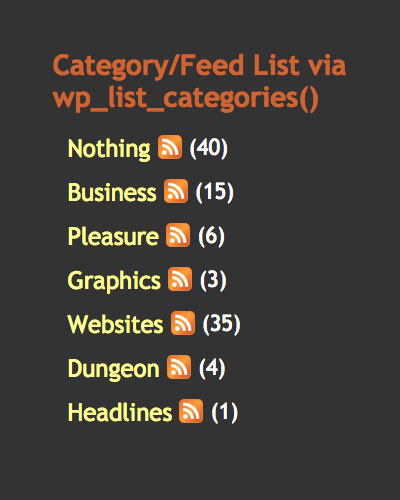 This brief tutorial explains two methods for adding RSS feed link icons to category listings. Let’s say that you have a list of category links, where each link targets a specific category view. Now let’s say that, next to each category link, you would like to provide a icon that links to that particular category’s syndicated feed. So, rather than cluttering up your page with two sets of category links — one for category views and another for category feeds — consolidate links and simplify your site by providing both sets of links in a logical, streamlined format.
Static Category/Feed List via wp_list_categories
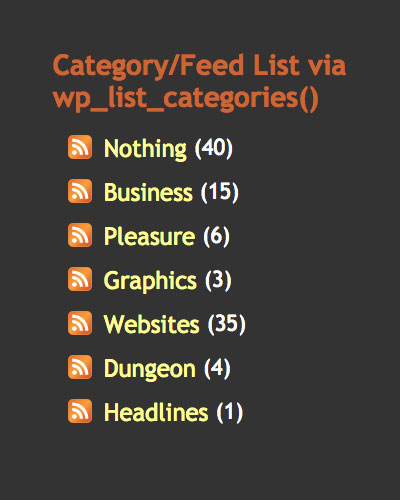 This function creates a customizable set of static category links that may be used in or out of the WordPress loop.
Category links created this way are static in that the same categories are displayed for every type of page view. Thus, if configured to display categories “A”, “B”, and “C”, the wp_list_categories function will create links for A, B, and C for post views, page views, archive views, category views, and every other view-type for that matter.
Nonetheless, despite this limitation, wp_list_categories provides an easy way to create a category feed icon links next their respective category links. Simply add the following to the location of your choice within your WP-powered document:
<?php wp_list_categories('feed_image=http://domain.com/path/feed-icon.gif&feed=XML Feed&optioncount=1&children=0'); ?>In this code example, we are using the following parameters:
- feed_image=http://domain.com/path/feed-icon.gif
- This parameter creates the feed icon link next to each category link. Change the domain, path, and file name according to your particular setup.
- feed=XML Feed
- This parameter produces the requisite
altandtitleattributes for the specified feed icon (if any), and also producestitleattributes for link anchor tags. - optioncount=1
- This parameter indicates whether or not the function writes the category post count next to the link.
1= yes, please display category post counts,2= no, please do not display post counts. - children=0
- This parameter instructs the function to include or exclude subcategories in the set of category links.
1= yes, please show all subcategories,2= no, please omit any subcategories from the category list.
This function also provides several handy parameters that are not discussed here. Please see the WordPress Codex for complete information concerning wp_list_categories. And for some free RSS/feed graphics, check out A Nice Collection of RSS Feed Icons.
Dynamic Category/Feed List via Plugin
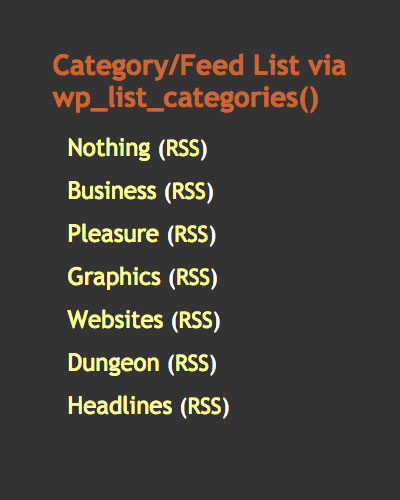 A more sophisticated, comprehensive method of providing users with category/feed links is delivered via Monzilla Media’s essential plugin, Category LiveBookmarks Plus. Category LiveBookmarks Plus (CLB+) automatically produces a highly customizable set of dynamic category/feed links anywhere within your WP-powered blog. Plus, in addition to creating a custom set of feed links, CLB+ also creates contextually relevant LiveBookmark autodiscovery feed links to the head element of your document (see plugin page for more details). In the screenshot images included in this tutorial, you can see some examples of possible format options available via CLB+.
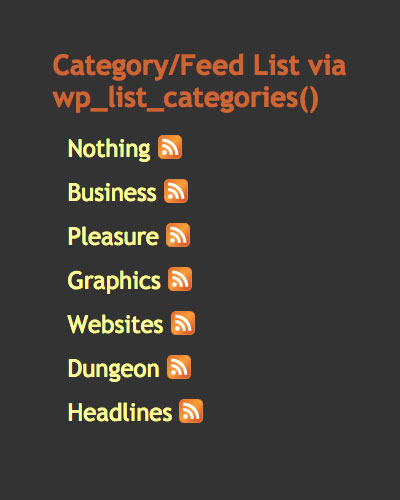 Of course, more configurations are possible, as well as many other customizable settings that enable users to create an ideal set of dynamically changing feed links throughout your site. Simply install the plugin and change the settings within the plugin file to customize your own set of category/feed links. Further, the CLB+ plugin creates a dynamic set of category/feed links that changes according to page view-type in order to provide only relevant feeds, as referenced via the particular page contents.
Regardless of which method you use, consolidating your category links with your category feed links will reduce clutter, streamline navigation, and promote simplicity. Thanks for listening — God Bless!


 Perishable Press is operated by Jeff Starr, a professional web developer and book author with two decades of experience.
Here you will find posts about web development, WordPress, security, and
Perishable Press is operated by Jeff Starr, a professional web developer and book author with two decades of experience.
Here you will find posts about web development, WordPress, security, and 
11 responses to “Add RSS Feed Link Icons to WordPress Category Listings”
Perishable, Is it possible to display the post counts for each category using the CLB+ plugin (as displayed using
wp_list_cats)?August, Yes, of course, there are settings to display the number of posts in each category for any of the various category/feed link configurations.
hi folks
thankyou for this – iam using method one -it works well for me. one thing i cant work out how to place the image alt within your code – which is required to keep xhtml valid code. see below my validation error.
alto
« [ Edit: removed validation error ] »
alto,
We have updated the article with some fresh information that will solve your problem. Read the first method once more and look for the new "feed=" attribute. We have used it in the past and it works like a charm — 100% strict XHTML validation and everything!
Hi, I’m using method one, but the rss image appears beneath the category instead of next to it. Any ideas on how to solve this problem?
hmm, interesting..
it would help to see a live occurrence of the situation. could you provide a link to an example? i would be more than happy to help!
Thanks. I have implemented it now on my homepage so you can have a look there.
I’m not very familiar with coding, but the only place I could find in my implementation where wp_list_cats is used, is in the widgets.php file, which is where I replaced the code. But as you can see on my site, the icons and number of categories appear beneath, instead of next to the category name.
Thanks
aha!
wp_list_cats()is deprecated as of WordPress 2.1. Try replacingwp_list_cats()withwp_list_categories()and let me know how it goes..hi. I’ve made the change. The only difference now is that the category names are indented, but icons still beneath. The number of post per category doesn’t display anymore, which is correct – I deselected the show # posts option.
Could it me something with the style sheet or the fact that it’s a fluid?
Thx
Yes, it is probably CSS-related. It appears that somehow the anchor (
<a>) elements are being displayed with CSSblockattributes, which will cause any element to “break” the flow of the line (unless other rules are applied). I would try targeting the links in that section (and perhaps images as well, for that matter) via CSS and apply either of the following properties:display: inline;(or)
float: left; clear: none;That should definitely do the trick..
Many thanks for your assistance.
I’ll have a look.